Configure the LR900 915 MHz Radio with MicoAssistant
MicoAssistant is a free, browser-based configuration tool for the LR900 telemetry radio. It runs entirely in Chrome or Edge — nothing to install — and lets you read and change every setting on the radio over USB. This guide explains what each parameter does, then gives copy-paste settings for the most common setups, from using the radio as a generic 915 MHz serial bridge to a full ArduPilot or PX4 telemetry link.
Written by the Robofusion engineering team — the first complete, plain-English walkthrough of the LR900's web configurator.
This guide is written for the LR900-F and LR900-P. They are used identically and differ only in transmit power (the -P is the higher-power version). The LR900-A works the same way in the tool, with two differences: it doesn't support FHSS frequency-hopping, and it uses the CH340 USB driver instead of the CP2102.
Do you even need to configure it?
For most people, no. Out of the box, a pair of LR900 radios is already paired and ready to use for the two most common jobs — just power them up:
- As a plain serial link (passthrough) — anything you send into one radio comes out the other. Drop it in where a wired serial cable would go.
- As ArduPilot / PX4 telemetry — wire it to the flight controller's TELEM port; the two radios link up on power-up.
The only thing you may need to match is the baud rate to your device (factory default is 57,600). Open MicoAssistant only if you want to: reach longer range (FHSS), run several radio pairs near each other, or use a different baud rate. If none of that applies, you can stop here.
Here's the factory state at a glance:
| Parameter | Default | Change it only if… |
|---|---|---|
| Work Mode | Duplex | …you're building a one-to-many RTK link |
| Speed Mode | High (2.1 KB/s) | …you need more range and can accept less data |
| TX Power | High | …you want to save power on a bench/indoor test |
| Freq Mode | Auto | …you want frequency-hopping or a fixed channel |
| Module Addr | 1000 | …you run more than one radio pair nearby |
| UART Baud | 57,600 | …your device uses a different baud |
Before you start
- A Chrome or Edge browser (MicoAssistant uses the Web Serial API; Firefox and Safari will not work).
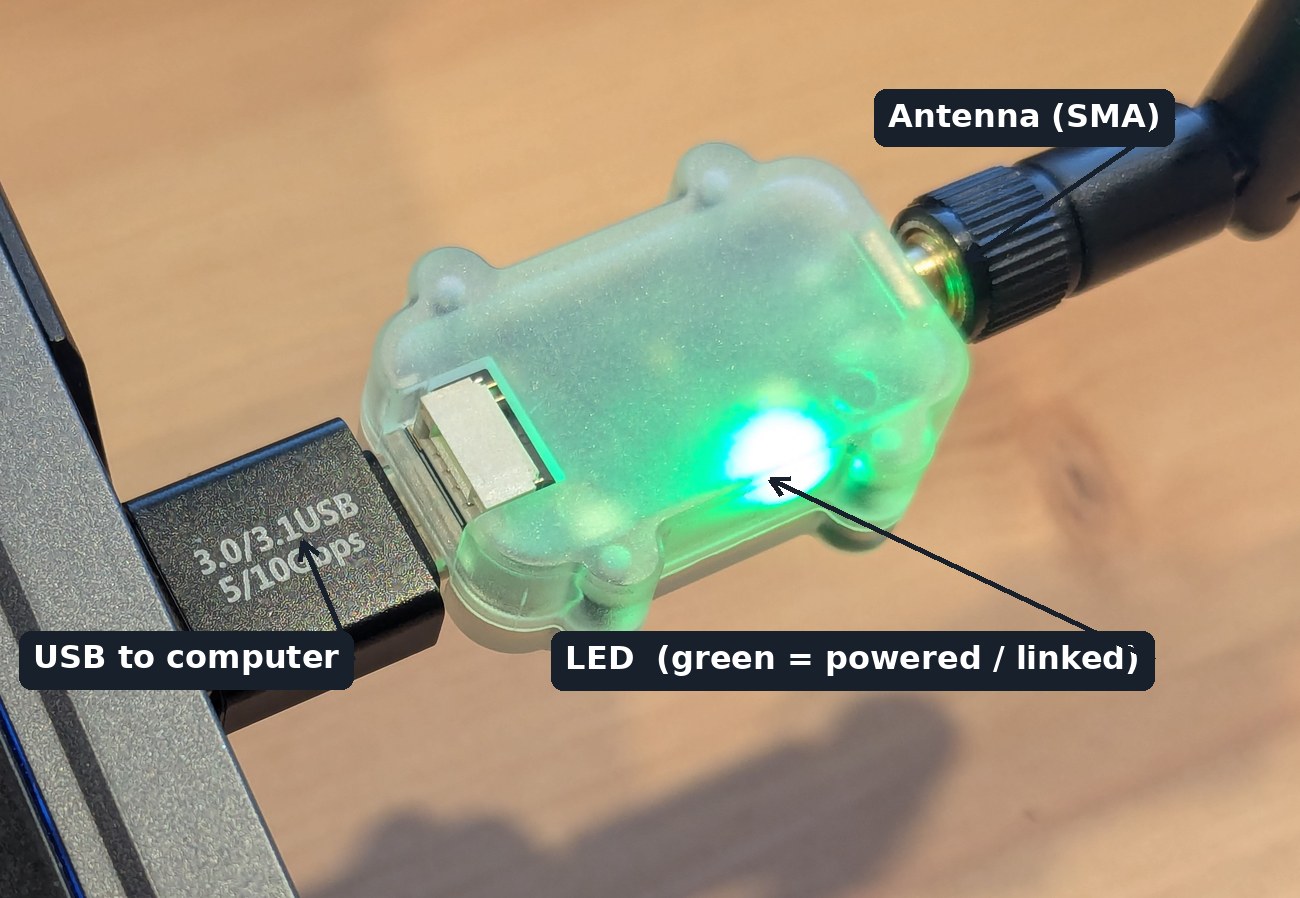
- A way to plug the radio into your computer. Every radio ships with a USB-A → USB-C adapter (the black adapter shown above) — fit it onto the radio and plug it straight into any USB port on your computer. No separate cable is required. (A USB-C cable also works if you prefer to use one; it isn't included.)
- The USB driver installed — CP2102 for the LR900-F/P, CH340 for the LR900-A. If you've never connected the radio before, do this first: CP2102 Driver Installation (Windows).
- The radio itself — an LR900-F or LR900-P. (The configurator also supports the rest of the LR-series: LR24-F/P, LR900-A, LR868-F, TRS, MSTAR24.)
Step 1 — Connect the radio
Open MicoAssistant and go to the Overview tab.
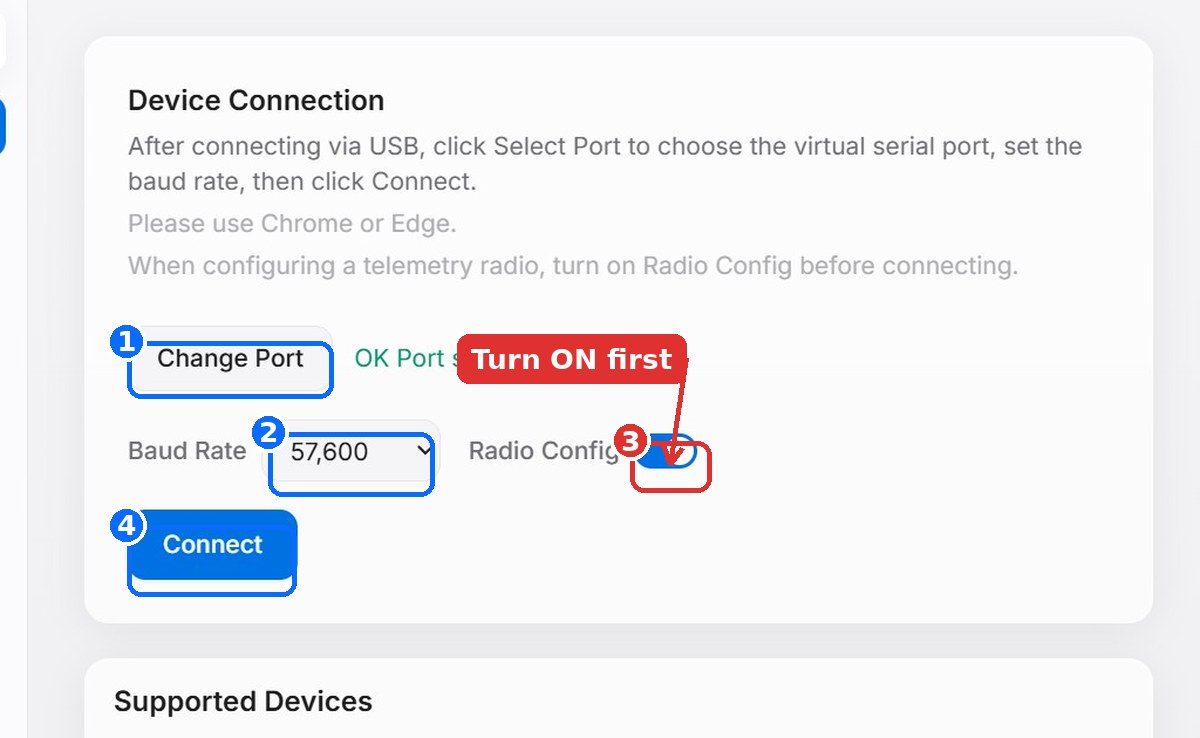
- Plug the radio into your computer using the included USB-A → USB-C adapter.
- Turn on the
Radio Configtoggle. This is the single most important step — it tells the tool you're configuring a radio module, not reading a sensor. Switch it on before you connect. - Click Change Port and pick the radio's serial port (the CP210x / CH340 device). You'll see "OK Port selected" in green.
- Leave Baud Rate at
57,600(the radio's default USB baud). - Click Connect. The status dot at the top-left turns to a green Connected.
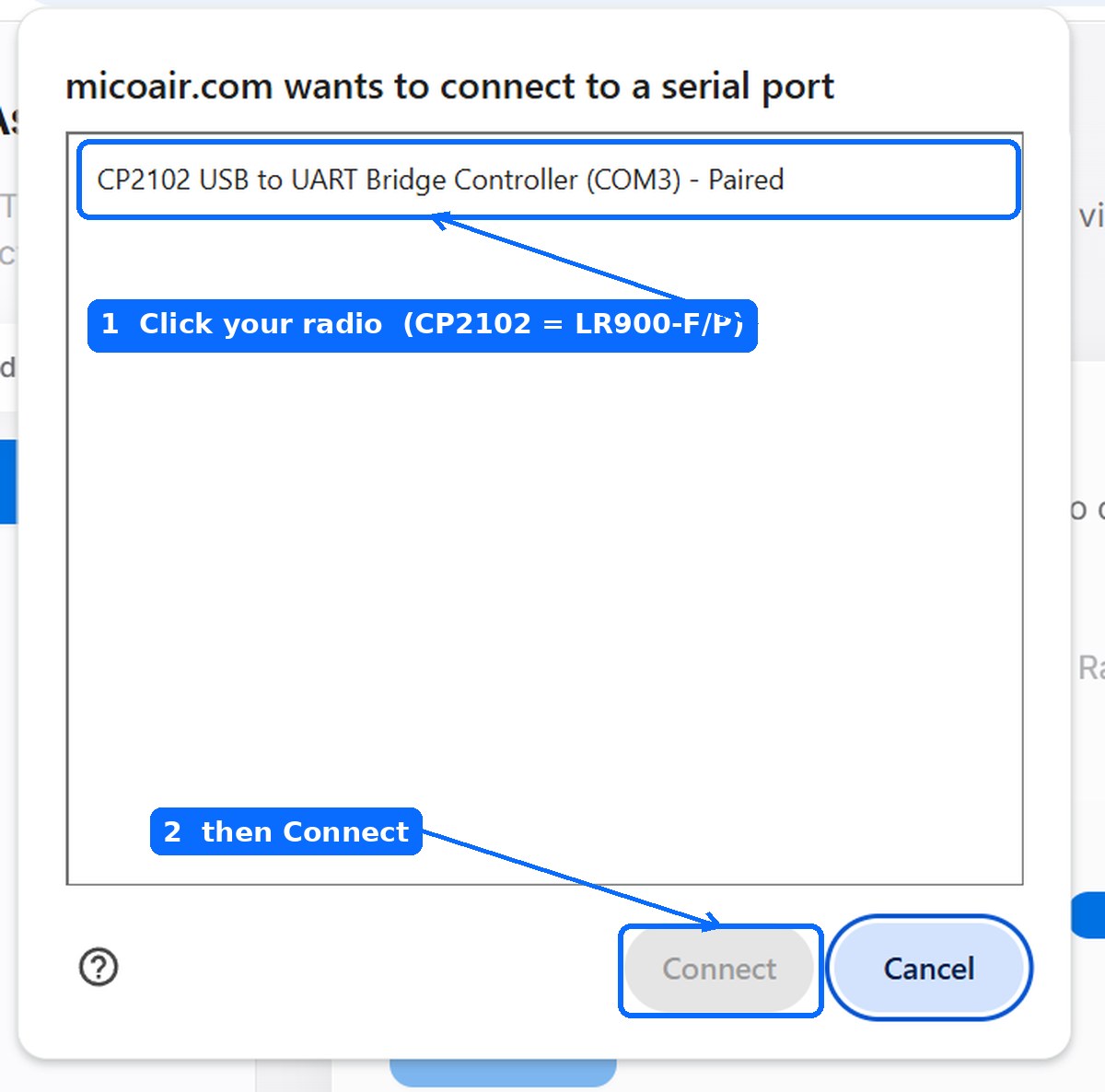
When you click Change Port, the browser shows its serial-port chooser. Pick the CP2102 (LR900-F/P) or CH340 (LR900-A) device, then confirm:
Configure one radio at a time — set up the second the same way afterward. Each radio connects to your computer through the USB-A → USB-C adapter. In normal flight-controller use, connect the radio to the flight controller through the GH1.25 4-pin UART port. The USB-C port is for connecting the radio to a computer or supported host device for configuration or ground-station use — it is not used to directly wire the radio to a flight controller.
Step 2 — Understand the parameters
Open the Params tab. You'll see the full parameter set for the radio, labelled Telemetry Radio – LR900. Each setting is a dropdown — here are all of them opened, so you can see every option at a glance:
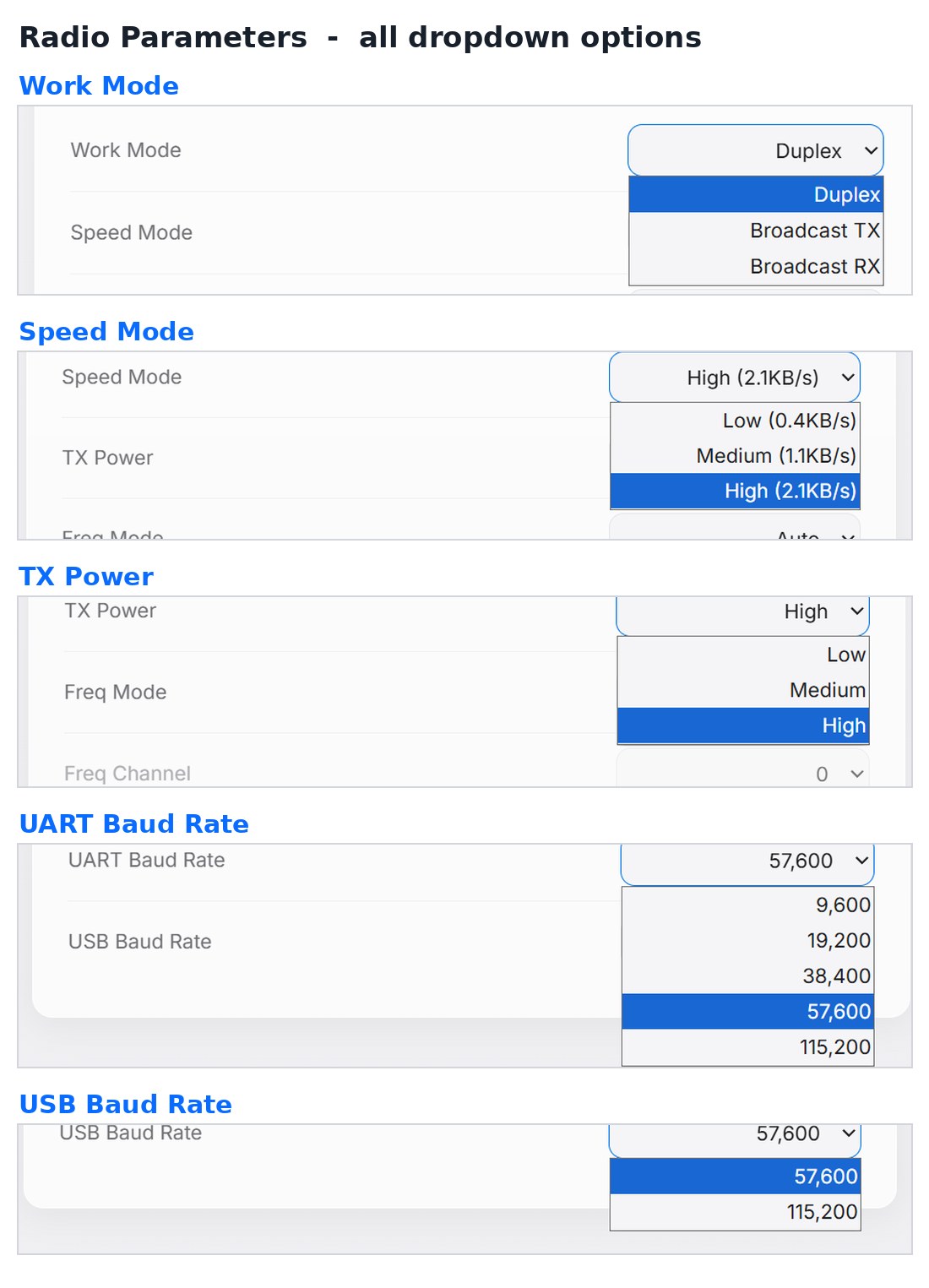
Here is what every setting does:
| Parameter | What it controls | Options | Default |
|---|---|---|---|
| Work Mode | The direction of data flow. Duplex is two-way (normal telemetry). The broadcast modes are one-way and are used for one-to-many links such as an RTK base feeding several rovers. | Duplex · Broadcast TX · Broadcast RX | Duplex |
| Speed Mode | The over-the-air data rate. Faster moves more data; slower reaches further. High is right for flight-controller telemetry. | Low (0.4 KB/s) · Medium (1.1 KB/s) · High (2.1 KB/s) | High |
| TX Power | Transmit power. Higher power means more range but more current draw. The actual maximum depends on the model (LR900-A ≈ 160 mW, F ≈ 500 mW, P ≈ 1000 mW). | Low · Medium · High | High |
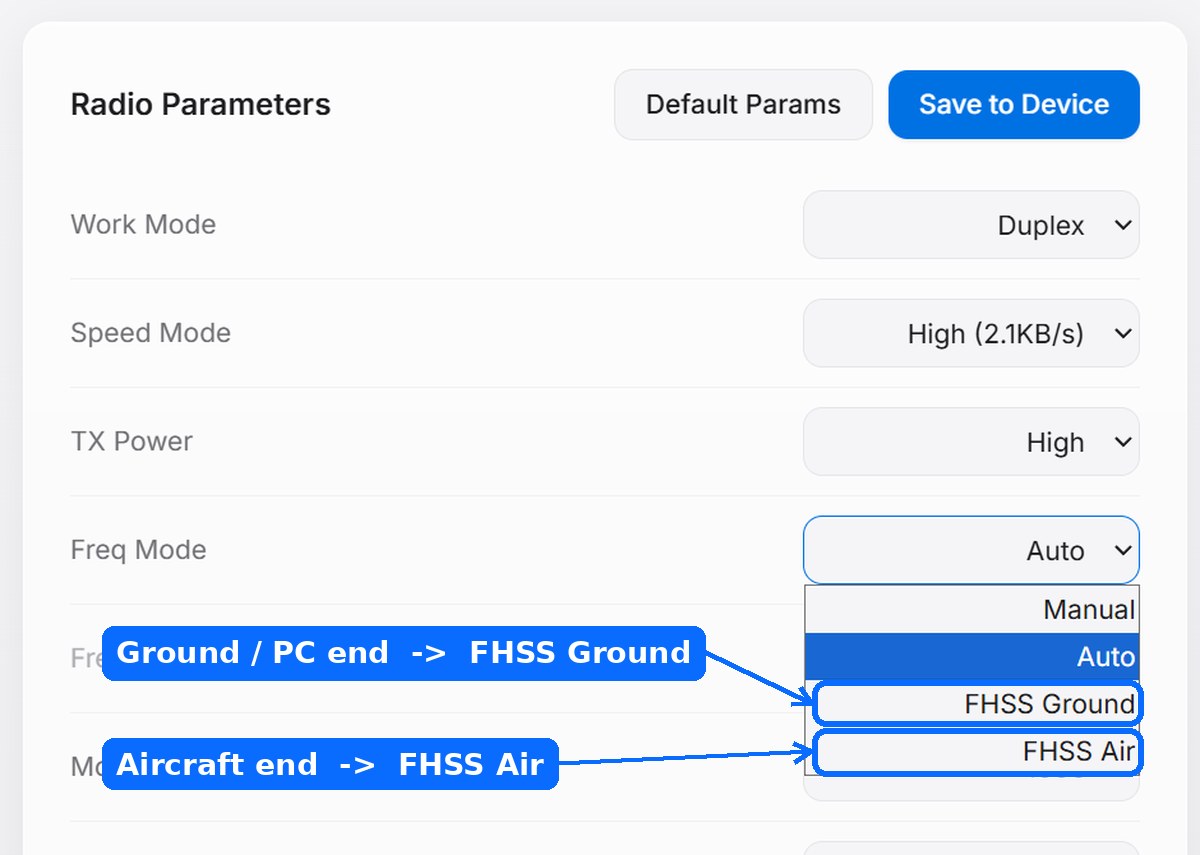
| Freq Mode | How the operating frequency is chosen. Auto just works. Manual lets you pin a channel. The two FHSS modes turn on frequency-hopping for better interference resistance (see below). | Manual · Auto · FHSS Ground · FHSS Air | Auto |
| Freq Channel | The fixed channel, only active in Manual mode (greyed out otherwise). Values 0–25 map across 890–915 MHz. | 0–25 | 0 |
| Module Addr | The pairing / network ID. Two radios only talk if their Module Addresses match. Change it to run several independent pairs nearby. | 1–30000 | 1000 |
| UART Baud Rate | Baud of the TTL serial port that wires to your flight controller. Must match the flight controller's serial baud (SERIALx_BAUD / SER_TELn_BAUD). | 9,600 · 19,200 · 38,400 · 57,600 · 115,200 | 57,600 |
| USB Baud Rate | Baud of the USB-C port to your computer / ground station. | 57,600 · 115,200 | 57,600 |
A note on FHSS (frequency hopping)
In a noisy 915 MHz environment, frequency-hopping spreads your link across many channels so a single source of interference can't block it. To use it, the two ends take different roles: the radio on the aircraft is set to FHSS Air, and the radio on the computer to FHSS Ground. FHSS also raises the downlink (aircraft → ground) rate, up to about 3.2 KB/s. Note the LR900-A does not support FHSS — use Auto on that model.
Step 3 — Save your changes
After changing values, click Save to Device (top-right of the Params panel). The Default Params button next to it resets everything to factory settings.
A link is a pair. Whatever you change that affects pairing — Module Address, Freq Mode, Speed Mode — must be set compatibly on both radios, or they won't connect.
Typical setups (copy-paste)
The LR900 is used two broad ways: as a plain long-range serial link between any two devices, and as a flight-controller telemetry radio. Here's how to set up each — pick the one that matches what you're doing.
Setup 1 — Generic 915 MHz serial link
The LR900 is a transparent UART bridge: whatever bytes go into one radio's serial port come out the other. That makes it a drop-in, long-range replacement for a wired serial connection — sensor backhaul, a microcontroller-to-PC link, an RTK base-to-rover data feed, and similar 915 MHz serial-link uses. Plenty of people buy these radios for exactly this, with no flight controller involved.
| Setting | Both radios | Notes |
|---|---|---|
| Work Mode | Duplex | Use the broadcast modes for one-to-many (e.g. one RTK base → several rovers) |
| UART Baud | match your device | set both ends to your device's baud rate |
| Module Addr | same on both | unique per link if several are nearby |
Setup 2 — Basic ArduPilot / PX4 telemetry link
The simplest drone case. Both radios keep the factory defaults; they pair on power-up (LED goes solid). You don't even need MicoAssistant for this — just wire it up and follow the flight-controller side: ArduPilot setup · PX4 setup.
| Setting | Both radios |
|---|---|
| Work Mode | Duplex |
| Speed Mode | High |
| Freq Mode | Auto |
| Module Addr | 1000 |
| UART Baud | 57600 (match your FC) |
Setup 3 — Best reliability for ArduPilot / PX4 telemetry: FHSS
Frequency-hopping (FHSS) spreads the link across many channels, improving resistance to interference and overall link reliability. It's the recommended mode for MAVLink flight-controller telemetry, where High speed is appropriate.
| Setting | Aircraft radio | Ground (PC) radio |
|---|---|---|
| Freq Mode | FHSS Air | FHSS Ground |
| TX Power | High | High |
| Speed Mode | High | High |
| Module Addr | 1000 (same on both) | 1000 (same on both) |
For non-MAVLink serial links where the data rate is low, a slower Medium or Low Speed Mode may reach further — but test with your actual payload, since real-world range depends on antennas, terrain and interference.
Setup 4 — Several aircraft / links at once
Give each pair its own Module Address so they don't interfere. Optionally switch to Manual Freq Mode and assign each pair a different Freq Channel for extra separation.
| Pair | Module Addr | (Optional) Freq Channel |
|---|---|---|
| Link 1 | 1001 | 5 |
| Link 2 | 1002 | 12 |
| Link 3 | 1003 | 20 |
Step 4 — Verify the link
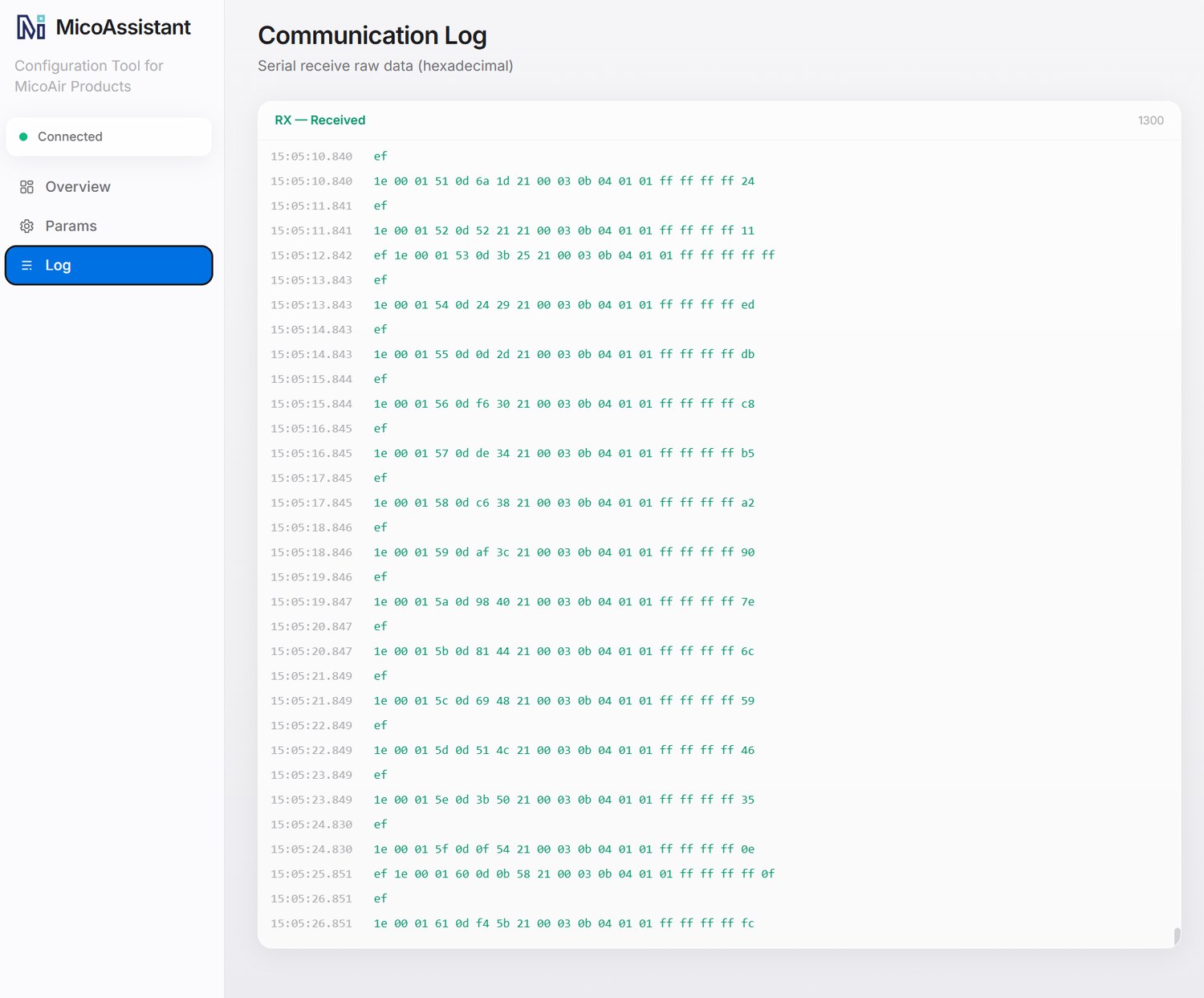
Reconnect the second radio, or switch to the Log tab to watch raw serial traffic. Bytes scrolling in the RX — Received pane confirm data is flowing across the link; on the radio itself, a solid LED means it's paired and connected.
Troubleshooting & FAQ
The browser won't open a port / "Web Serial not supported." Use Chrome or Edge — Firefox and Safari don't support the Web Serial API MicoAssistant relies on.
No port appears when I click Change Port. The USB driver isn't installed. Install the CP2102 driver (LR900-F/P) or the CH340 driver (LR900-A), then try again.
The two radios won't pair.
Check that both have the same Module Address, a compatible Freq Mode, and the same Speed Mode. If you're using FHSS, one end must be FHSS Air and the other FHSS Ground.
Do both radios need an "air" and a "ground" end? Only in FHSS mode. In the default Auto mode the two ends are interchangeable.
Can I mix an LR900-A with an LR900-F or -P? Yes — the variants interoperate. The link range is limited by whichever end has the lower transmit power, and remember the LR900-A can't do FHSS.
What baud should my flight controller use?
Match it to the radio's UART Baud Rate (default 57600). In ArduPilot that's SERIALx_BAUD = 57; in PX4 it's SER_TELn_BAUD = 57600.
Where to buy
The radios this guide configures, shipped from Canada with free Canada-wide shipping:
- MicoAir LR900-F — 915 MHz, 500 mW, 30 km class
- MicoAir LR900-P — 915 MHz, 1 W FHSS flagship
Written and maintained by the Robofusion engineering team.